Introduction to WordPress
What people ask me every time I recommend WordPress: what it is, when to use it, how to install, maintain and back it up, and why not build your own CMS.
 Snell Rojas
I wrote this post in Spanish in 2022 and adapted it to English in 2026.
This isn't a WordPress tutorial. It's more a collection of the questions I've been asked throughout my career as a webmaster every time I recommend WordPress for managing (or building) a web project.
I hope this guide is the light at the end of the tunnel if you want to learn a bit more about this content management platform.
What Is WordPress? #
WordPress is by far the most popular CMS of all time, and the one that's been most successful among those of us who work online when it comes to carrying out any web project.
CMS stands for content management system: a system that helps us manage content.
It was originally designed to run blogs.
However, its constant updates and ease of use made it grow enormously, which turned it into a platform where it's very easy to optimize SEO.
And since SEO means money, other kinds of websites have been built on WordPress thanks to the plugins and integrations that keep coming out for it.
So today you can build anything from ecommerce stores to consulting websites where you book appointments, with a calendar and everything, but we'll get to that in the next section.
Important note
I'm talking about WordPress as a content management platform, meaning the software you can download from WordPress.org, not WordPress.com, the blogging platform.
When Should You Use WordPress? #
When should you use WordPress? It's a question you might ask if you've never used the platform, and the answer is: whenever you're going down one of these two paths.
Path A: when there's no team of developers behind the client's product to support it. And if the client is you, and you can't afford a team of developers to maintain your website, the best thing you can do is use WordPress.
Even if you'll only have five product and/or service pages. The reason is that WordPress is very intuitive, has a community behind it, and almost any question or problem you run into can be solved with a quick Google search.
Path B: the second reason to use WordPress, even when you do have a team of developers supporting the site, is when you're going to manage a huge amount of content.
It's true that almost every high-level programming language has some CMS framework, but it's also true that a custom build like that needs a lot of maintenance.
And if the website you're building isn't the main product the company's money flows from, those are some pretty significant resources you'll be investing in a line of business that doesn't make money.
So, to avoid that kind of situation (where we put too many resources into something that doesn't make money), the truth is it's better to use WordPress, which already has everything optimized and built for handling large volumes of content.
We're talking about managing a hundred, a thousand or even more pages. In that case (even with developers behind it), WordPress is a great option because it cuts development and maintenance time.
What Is WordPress Made Of? #
WordPress as such is a web application you can use to manage the entire backend of a website, and at its core it splits into two big branches:
One branch is the PHP files and media, like videos, photos, PDF files or other documents. In other words, anything downloadable goes into the media category.
The media and the PHP files make up WordPress's main skeleton, like the themes, the plugins and so on. These files live on your web server, in your website's root directory.
The other branch is the databases, where all of WordPress's settings and all the content are stored. We'll look at this in more detail in the next two sections.
PHP files and media
WordPress is a set of PHP files that form the base the web application runs on. Any file that modifies the database has a .php extension and lives with the files in your website's root folder.
There are also some folders where content is organized by plugins, uploaded media, and so on.
Worth noting: any .html or .php file that generates a URL and sits in this folder will be a valid URL on your website, even if WordPress can't edit that content from the web application.
SQL databases
There's not much mystery here... WordPress creates some SQL tables where it stores all the site's settings.
By default, these tables already come with the base information the website needs to get started, like the homepage URL, the URLs of the default posts and pages, pre-installed plugins, pre-installed themes, and all the settings like users and so on.
Then, everything that makes up the content you create on your website gets edited on top of those tables. For example, the posts table can grow if you start publishing new content, or the pages table, and so on.
You can also create new SQL tables using plugins. In fact, most plugins work that way: they create their own tables and work on them.
That's to avoid working on WordPress's core tables, so that if something fails, well, nothing gets damaged.
So that gives WordPress impressive flexibility as a CMS: if you need something extra to store information and run queries, you can create your own SQL tables through a plugin you build yourself.
On most hosting services you'll come across, these tables are usually managed with MySQL, but just so you know, MariaDB works too.
What Are WordPress Plugins? #
I've mentioned the word plugin quite a bit in this post. I just realized we're almost halfway through and I haven't explained what they are.
As the name says, plugins are add-ons that add functionality to WordPress and don't need much setup from the user.
Today there are tens of thousands of plugins in the WordPress directory, and that's not counting plugins that aren't available there because they were built separately by people who wanted to add a specific feature that only meets their own needs and didn't want to share it with the public.
But hey, there are all kinds to choose from. Some very popular ones help you turn your website into an ecommerce store, like WooCommerce, and others help you manage and optimize your website's SEO, like Rank Math.
As I said before: if you need your website to do something beyond what WordPress offers (or what the plugins in the WordPress directory offer), you can always build your own to meet those special needs.
And this is where something I mentioned in the when to use WordPress section comes into play: if you have a team of developers behind your website, it'll always be easier to finish building a plugin that adds a specific feature (especially on top of everything WordPress already gives you) than to build a CMS from scratch.
If the website isn't the main source of the company's money in its business model, it's practically unfeasible to spend that much time on a CMS when WordPress is already so powerful and so spectacular. I love you, WordPress. I know you can't read this, but now you know.
How Do You Install WordPress? #
Most hosting services today offer systems like Installatron or Softaculous that manage your WordPress installs, so you can install a new one or manage a WordPress site you've already migrated from another server.
If you're a user without much technical knowledge, the best thing you can do is pay that extra so you get automatic WordPress management tools in your hosting's cPanel.
There are also hosting services that sell you a managed WordPress directly: they handle everything and you just ask them to make this or that change.
That said, installing it isn't rocket science either. Let's look at two of the simplest and most widely used methods among web professionals (just briefly, since this isn't a tutorial).
Installing WordPress manually
This is the most traditional install. Just go to WordPress.org, download the latest version of WordPress (or whatever version you like, if you know a bit more and have specific needs), upload it to your server, unzip it, and that's it. All the file side is ready.
Now these files have to connect to a database for the website to work. If you visit your website's URL with only the files in place, you'll get an "Error establishing a database connection" message on screen, and the reason is that the database doesn't exist yet.
What's left is to create the SQL database, which you can manage with phpMyAdmin (or any other manager). You create a blank database (you don't need to create tables or anything, you just need the database and the user to exist), and with that it's ready.
Then you just edit a WordPress config file to give it the username and password for the database, and bam, done. That's it, WordPress is installed.
If you want to dig deeper into this, here's a list of YouTube results with hundreds and hundreds of videos showing you how to install WordPress manually.
Installing WordPress with Docker
Installing WordPress with Docker takes slightly more advanced knowledge, and you also need to know a bit of programming.
That said, if you like tinkering, that's enough...
Since this is a bit more advanced, it also needs special hosting, like a VPS (virtual private server).
The truth is, it's not rocket science: all you need is a good Docker Compose config file that starts the services you need.
That's WordPress, a web server, and MariaDB or MySQL for the database, and that's it.
Here's a DigitalOcean tutorial I think is freaking awesome for how well detailed it is. It lets you set up SSL, all automated, in a single config file:
Install WordPress with Docker Compose.
How Much Maintenance Does a WordPress Site Need? #
To be honest, somewhere between zero and none. That's how much maintenance a WordPress website needs once everything is up and running.
You can even keep publishing content without maintaining the site, because once you've installed all the plugins you need, the WordPress version you need, the theme you need, and everything is laid out...
That's it.
There's nothing more to do.
It runs itself.
Let's face it, that's the whole point of having a CMS like WordPress... It's true there are updates for both plugins and WordPress itself, but you don't have to install them right away.
Unless, of course, you get a message that a plugin is going to stop working because its owner is going to stop maintaining it, or something like that. What happens then is that any security hole is on you.
If a hacker finds a security flaw in an unsupported version of a particular plugin, you're exposed to that vulnerability.
Here's a post on WordPress security so you can see a bit more about maintaining a WordPress site:
That said, just hitting the update button for your plugins and WordPress every three or four months is plenty. Keeping a WordPress website running doesn't take a big investment of time.
How Is Content Managed and Organized in a WordPress Site? #
WordPress has two main branches for managing content. The first is pages and the second is posts.
How are they different? Not at all.
To WordPress they're the same thing. In the database, it stores one in the pages table and the other in the posts table.
What's the catch? Pages and blog posts are managed differently: pages have "parent pages" (which they hang from), while blog posts have "categories".
Another main difference is that blog posts have an extra feature, "tags", which let you categorize your content better and organize it like nothing else.
Here are two posts explaining how to organize content so it even helps your SEO, and how to use categories, tags and everything else so it looks great and is easy to navigate for both users and Google, and you end up crushing it online.
WordPress taxonomies and how to organize content into posts, categories, tags and pages.
Organizing content by the semantic relationship between keywords.
How Do You Back Up a WordPress Site? #
This isn't rocket science either: you just zip up all the files in the website's root folder, and that gives you a backup of WordPress's files. All that's left is to back up the database, and you're done.
That's all.
The day you want to go back to that point in your WordPress site (or migrate it to another hosting provider), you just create the database, import the tables you backed up and unzip the files, done!
If you have developer skills, you can set up a scheduled crontab to do this every so often, and even hook it up to a Google API so the backup lives in the cloud, on Google Drive, instead of on the same server.
You can also use AWS or whatever cloud service you like.
Hosting services (even the cheapest ones) offer a backup service, which of course has some limits. Those limits can be a number of backups per month that, like I said, if you have developer skills, is just a matter of scheduling a crontab, and that's it.
But hey, the hosting guy has to eat too, right? He offers you the service and charges you extra for the number of backups he'll make of your WordPress site.
In short, it's as simple as backing up the files and the database.
Why Use WordPress Instead of a Custom Build? #
Give or take a few words: because. Because I say so, and you have to believe everything I tell you because I'm the expert.
Seriously, though, the reason to use WordPress is that most of the work of having a CMS comes ready-made. Everything related to managing content is already programmed, already done... So in a couple of clicks you have the website up.
That's why, if it's about managing content, meaning the website isn't designed around complex business logic, you can use WordPress.
Now, if your company's product is the website... then you can't use WordPress, because with complex business logic you need a custom build tailored to your business.
Mostly so you don't rack your brain adapting WordPress to all your specific needs. Just imagine trying to build Netflix on WordPress.
However, if it's just about managing blog content, training content, documentation and so on, WordPress is the ideal tool.
It has everything done, and any extra needs can be covered by building a plugin, which (I'll say it again, because I never get tired of saying it) is easier than building a whole CMS.
That would be the main reason to use WordPress.
And well... there are plenty more reasons: the community is huge, it has support, complete documentation, etc., etc.
WordPress has changed a lot to become the powerful tool it is today.
The truth is, I've been using it since 2017, and today's WordPress is an absolute pleasure to use compared to earlier versions.
Conclusions #
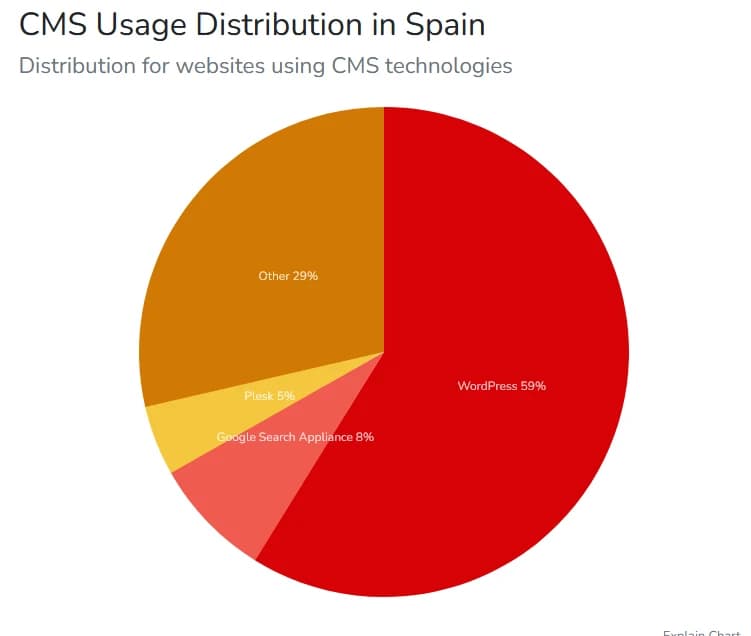
All I have left to say is that WordPress has gone past a hundred versions, so a ton of bugs have been fixed along the way. Add to that the fact that in Spain alone, almost 60% of websites built with CMS technologies are made with WordPress.
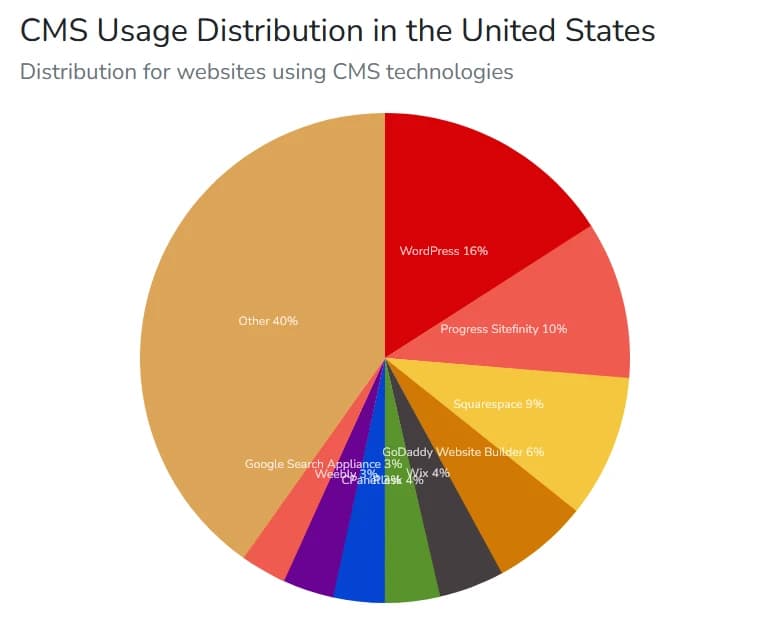
Meanwhile, in the monster US market, WordPress is the most used CMS with 16% of all websites that run on this kind of technology. CMS Usage Distribution in the United States.
A product being popular (even if that often doesn't make it the best) usually means it has great support and a great community, and those are two things to value a lot whenever you take on a build like a project that's going to live on the web.
If you have any questions (or whatever), write to me. I'll answer. You can find me on LinkedIn. Bye for now. Take care. Don't let the mosquitoes bite.