Change the Font in WordPress
How to change the font color in WordPress, with or without plugins: theme options, Elementor, inline HTML, or site-wide with Additional CSS.
 Snell Rojas
I wrote this post in Spanish in 2021 and adapted it to English in 2026.
In today's tutorial I don't want to get too tangled up in explanations about changing fonts in WordPress.
I'll try to get straight to the point, where the real meat is. If you feel lost at any step, you can leave your question in the comments and I'll gladly answer.
Change the Font in WordPress: Text Color from Your Theme #
Some themes (Schema, for example) have "Theme Options". This section is usually under Appearance > Theme Options, and once you're there, if you go to Typography, you'll see something like this:
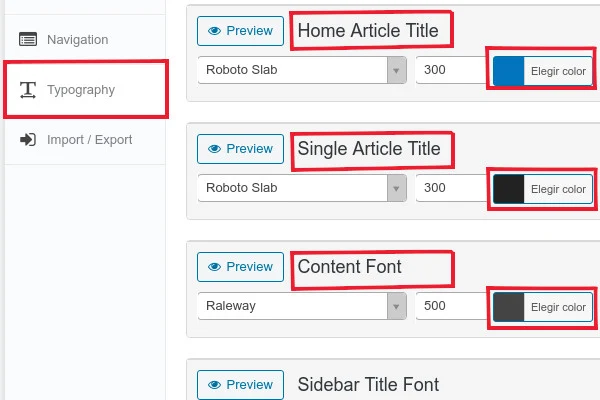
In this section, as you can see in the screenshot above, you can change the text color of any section of this theme.
But... what if my theme doesn't have this option?
Nothing. You'll have to find another way.
Thank goodness WordPress has plugins, which (used well) can get you out of a jam easily.
There are lots of plugins for changing text color, but for me, I repeat, for me, the most complete one is Elementor.
Change the Font in WordPress: Using Elementor to Change Text Color #
Using Elementor to change text color in WordPress is actually fun. Just choose the Edit with Elementor option and you can start playing with colors.
Once you're in, go to the box whose text color you want to change and click Style > Text Color. It'll look something like this:
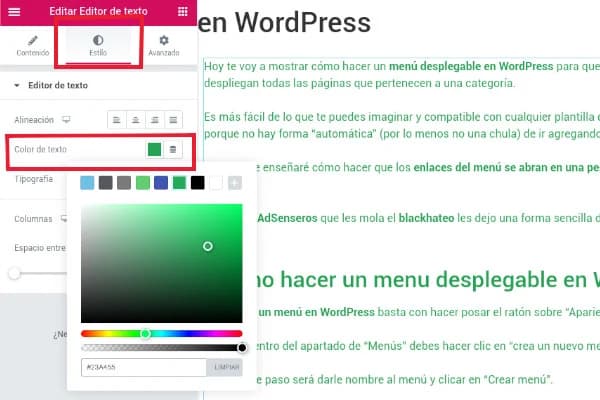
Here you can pick the color you want for the text, no problem.
Two things worth pointing out:
- To change the text color of just one part of the text, you have to split your post into Elementor boxes. I don't recommend this method if it's something you want to repeat on more than a couple of posts.
- To change the text color on every post, the most effective way is creating a single, that is, a template that applies (using conditional display rules) to specific pages on your website.
However, if you want to do that, you'll need Elementor Pro.
Change the Font in WordPress: Editing CSS Styles to Change Text Color #
This is my favorite part of the tutorial. Why? Because installing plugins to do something as simple as changing text color is always a mistake.
Since we're on the subject of mistakes, and I'll never get tired of explaining this, let me tell you why: every time you activate a plugin and it starts working, it creates "junk code" that ends up "dirtying" your site and slowing it down.
This junk code can live in lots of different places, and tracking it down to delete it is a never-ending job. Think about it: if your website will be live for a long time, activating plugins every other waning moon will drag down your load speed, period.
So before installing any plugin, first check whether you can do what you want without depending on one.
End of explanation. Let's get back to the tutorial.
Change the font in WordPress: change the text color of just one part of the text
If you want to change the text color in WordPress (as in any other CMS), the easiest way is to use HTML tags and the style="" attribute.
To get to the tags, say goodbye to the visual editor and switch to HTML, as this screenshot shows:
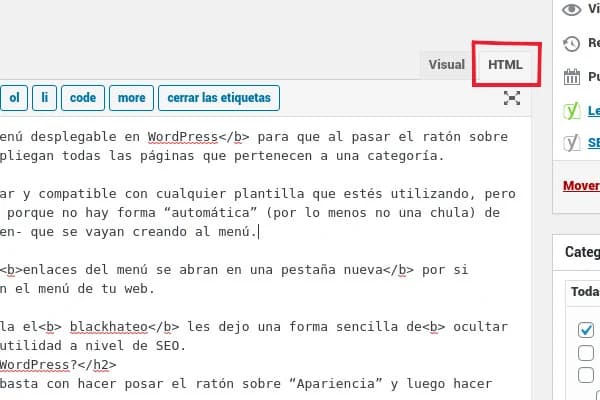
To change the text color inside a paragraph, you use:
<span style="color: #79d70f">compatible con cualquier plantilla que estés utilizando</span>
(The sample text means "compatible with any theme you're using".)
The result will look like this other screenshot:
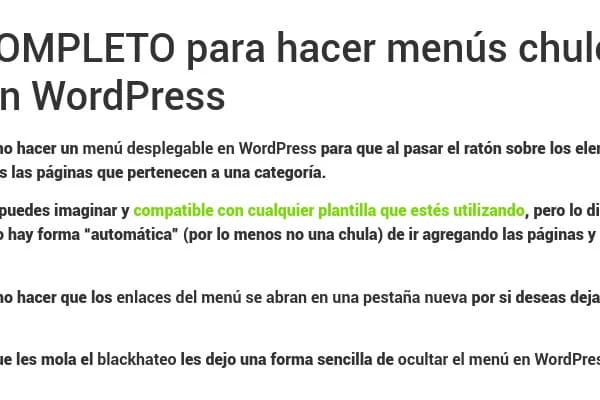
If you want to change the text color of a tag, for example an H2 heading, it would be:
<h2 style="color: #b31313">¿Cómo hacer un menu desplegable en WordPress?</h2>
(The sample heading means "How do you make a dropdown menu in WordPress?")
The result would look something like this:

As you can see, the WordPress HTML editor gives you a lot of freedom to change whatever styles you see fit. It's a cool way to lay out your posts so they have more personality.
Change the Font in WordPress: Change the Text Color for the Whole Theme #
For this, you need to know the name of the class you want to change, for example every h1 heading. Then go to Appearance > Customize, open Additional CSS, and add your change to that class there.
For example, with this code you can change the color of every h1 and every paragraph:
h1{
color:red!important;
}
body{
color:purple!important;
}
The result would look something like this:
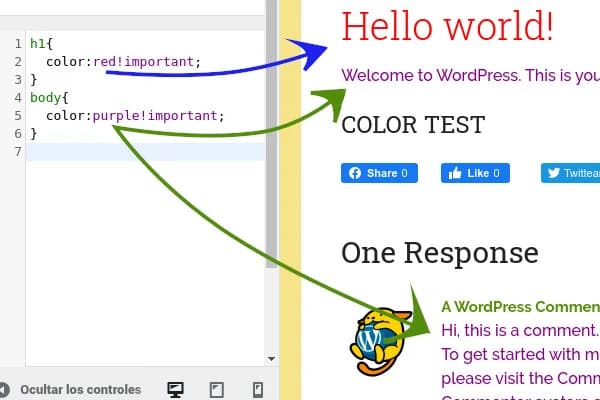
So if you want to make general changes to your theme, Additional CSS is the best option. That way you don't touch your theme's style.css and you lower the risk of making a royal mess by deleting (or changing) the wrong settings.
It has another advantage too: your changes aren't lost when the theme updates.
That's all I have for you today. I hope the tutorial helps you make the changes you want. If you have questions, remember I'm available in the comments. See you later, bro.