Create a Dropdown Menu in WordPress
A complete tutorial on creating a WordPress dropdown menu, plus tricks: opening menu links in a new tab and hiding the menu with CSS.
 Snell Rojas
I wrote this post in Spanish in 2021 and adapted it to English in 2026.
Today I'm going to show you how to create a WordPress menu so that when you hover over the menu items, all the pages that belong to a category drop down.
It's easier than you might imagine and works with any theme you're using, but like I said, it takes a fair amount of manual work, because there's no "automatic" way (at least not a nice one) to keep adding the pages and posts you create to the menu, in order.
I'll also show you how to make menu links open in a new tab, in case you want to put some kind of affiliate link in your website's menu.
And for the AdSense folks who like a bit of black hat, I'll leave you a simple way to hide the menu in WordPress without losing its SEO value.
How Do You Make a Dropdown Menu in WordPress? #
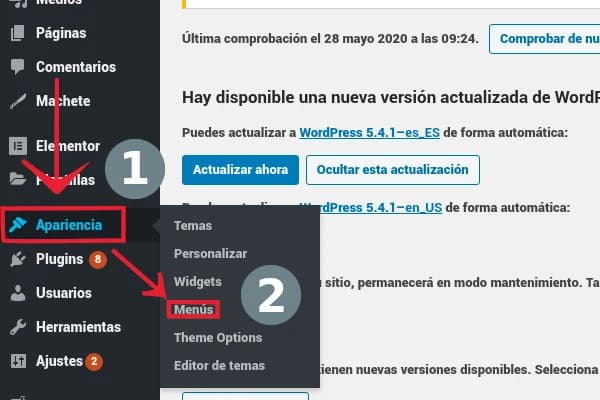
To create a menu in WordPress, just hover over Appearance and then click Menus.
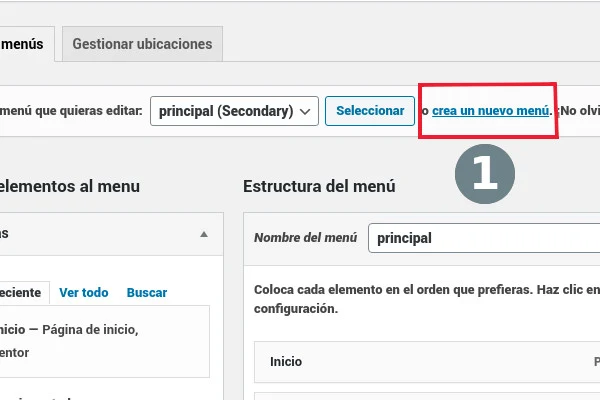
Once you're in the Menus section, click "create a new menu".
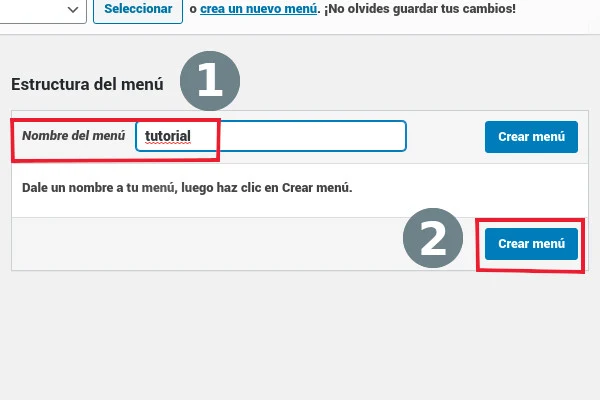
The next step is to give the menu a name and click Create Menu.
With the menu created, you can choose from:
- Pages
- Posts
- Custom Links
- Categories
When adding to the menu, you can also choose its location. Remember that the available locations depend on your theme.
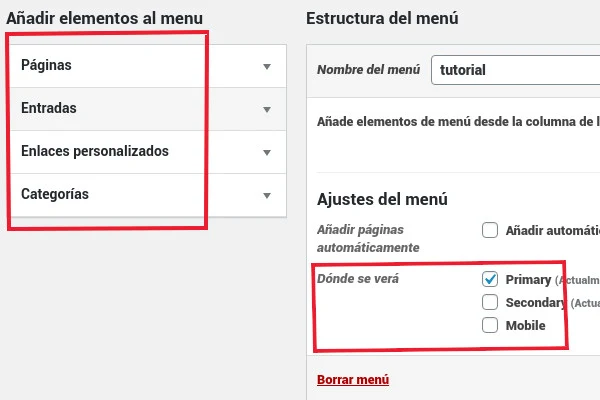
If you're using Elementor to build your site's header, you'll set the location with Elementor itself.
Select the pages and/or posts you want to add to the menu and click the Add to Menu button.
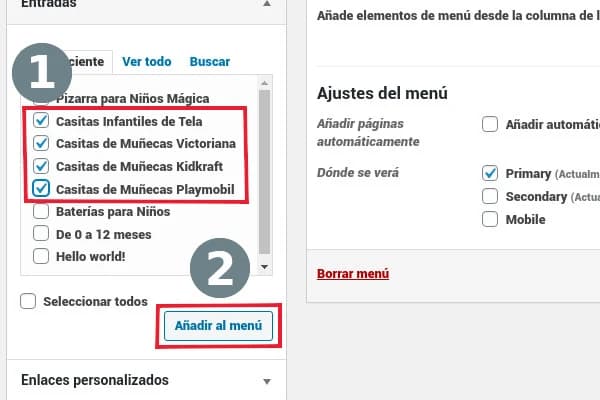
The pages and/or posts you added will look like this:
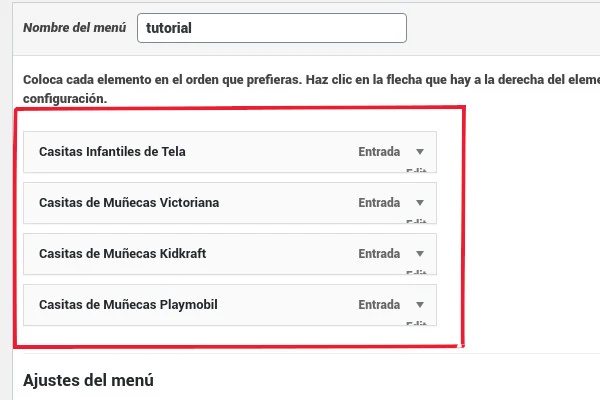
To group the posts under a dropdown option, you need to create a sort of parent "page" that collects them all under a single menu option.
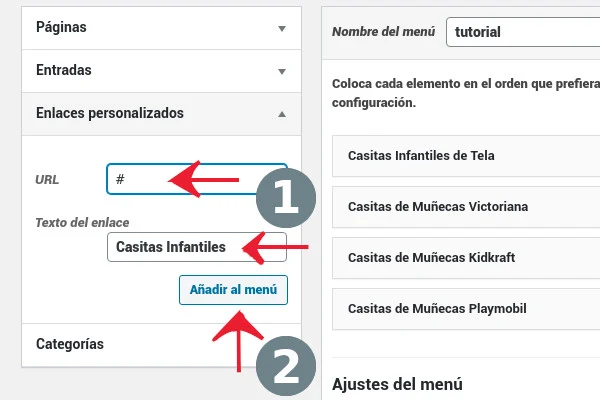
You can create the page the way I'm showing you, or select a page on your website, which should be the posts' category, for this part of the process.
Once you've created the posts' "parent" (so they become dropdown children in the menu), drag them under the item where you want them to drop down, so it ends up something like this:
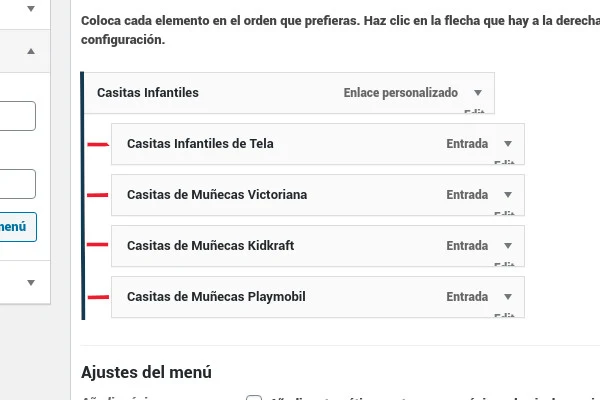
The result is a menu that, when you hover over it, drops down all its children:
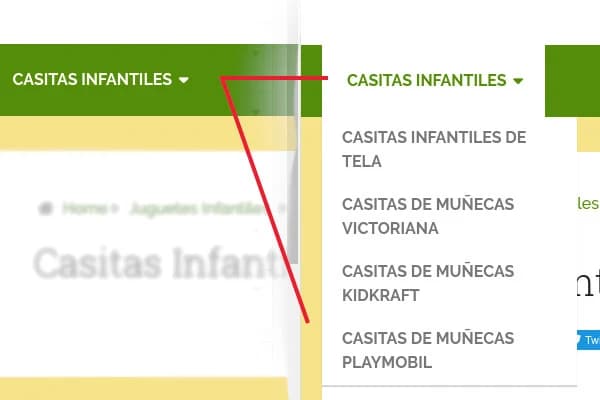
Avoid checking the "automatically add new top-level pages" option, because you won't have control over the order they appear in the menu.
You have to add new items by hand, following this same process, every time you publish a post in that category.
Creating a WordPress Menu: Can Menu Items Open in a New Tab? #
To open menu items in a new tab, find the Screen Options 🔽 button in the top right corner and check the ✅ Link Target box, like this:
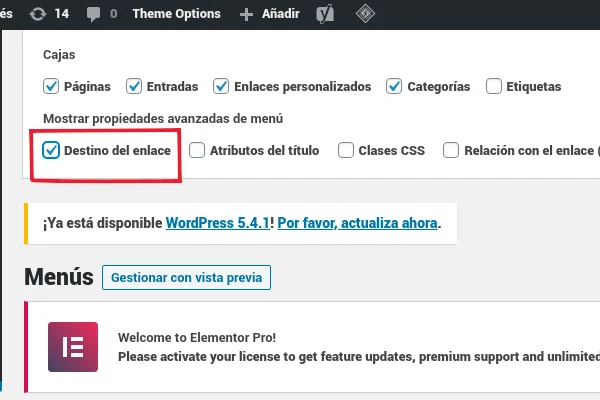
Once you've done that, a new checkbox will appear on the menu items, which you can check so the links open in a new tab:
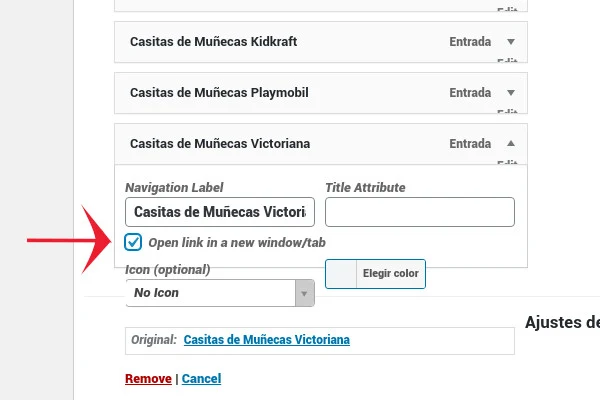
Do this for links that go outside your website. I don't recommend it for internal links, because you can end up overwhelming the reader with open tabs and make them leave.
How Do You Hide the Menu on a WordPress Page? #
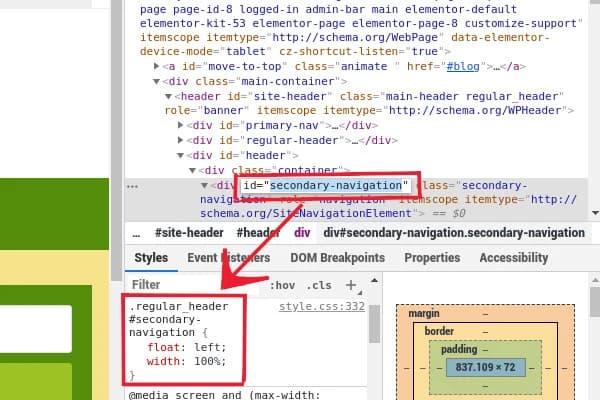
To hide the menu in WordPress, use your browser's inspect mode and check the name of the class that gives the CSS styles to the div holding the menu:
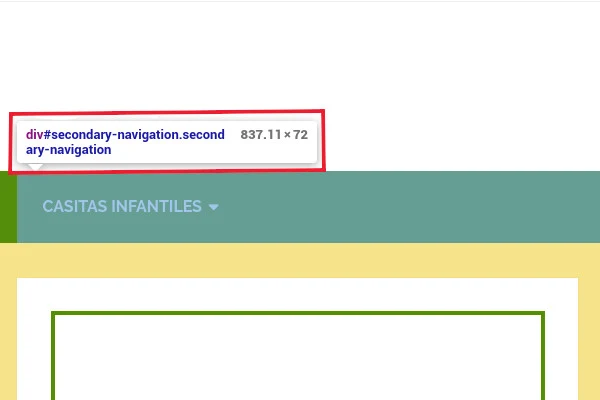
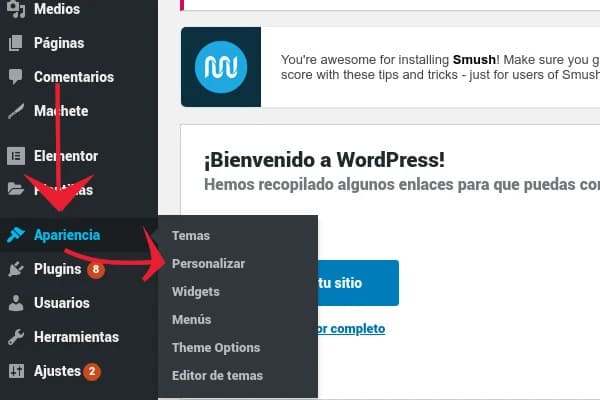
Then go to Appearance > Customize and open Additional CSS.
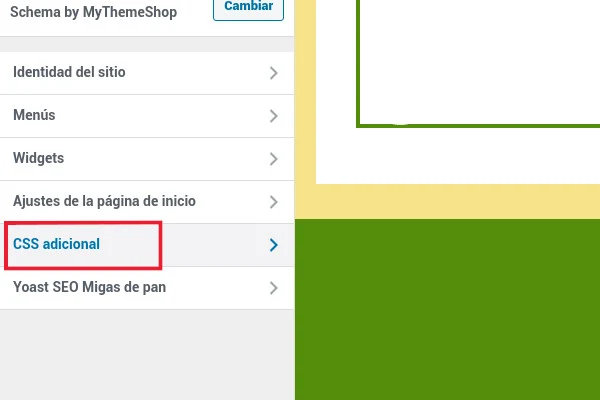
Here you can add CSS rules that will override your theme's (and plugins') to get everything the way you like it (or need it).
To make the menu disappear, just add the "display:none" property. In my case, the code would be something like this:
.regular_header
#secondary-navigation{

display:none;

}
Remember, this is my particular case (and that of everyone using Schema as their theme, which is most people, heh). You need to find the class that controls your website's menu. In my case, I repeat, my case, that class is .regular_header #secondary-navigation
I add it to Additional CSS:
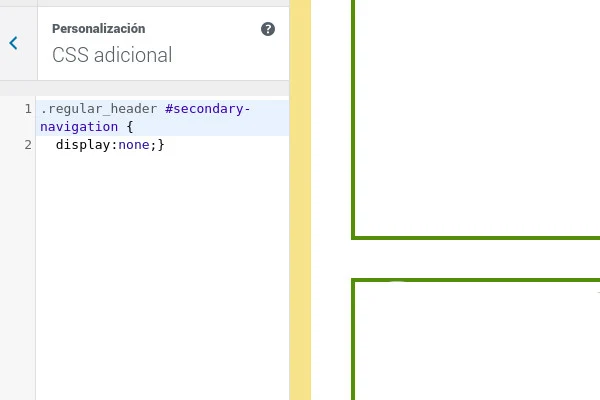
With this, the menu "disappears", and I say that in quotes because users can't see it, but in the eyes of Saint Big G it's still there, so it can still be used for SEO purposes. 😎
This trick is pretty sweet for AdSense CTA websites where you want users to use your link banner instead of the website's menu.
That's all for this post. If you have questions about any part of the process, leave them in the comments and I'll answer. For now, I'll sign off. 😘